|
ResortAc.com Help Page
|
Welcome! If you're here, we can assume that
you are trying to figure out how to do something on our website.
We know that nobody likes to read directions, so we made this page as
short and effective as possible. Please contact
me here with any suggestions or questions.
Following are helpful steps to get your accommodation listing posted onto our website quickly.
|
Post a new listing:
- Click on the Owners Logon
link on the left side of page.
- Click the New Owner button on the bottom right.
- Enter your contact, and logon information and
click the Submit button.
- Return to the Owners Menu.
- Click on the grey Add Property button.
- Carefully enter all the details about your place.
Any details marked with an asterisk * are required. Enter these ones first.
- As soon as you have all the required details
entered click the Submit button at the bottom of the screen. Continue to
click the Submit button frequently as you work so you do not loose any
of your changes
|
Add pricing seasons:
| |
- Click on the Owners Logon
link on the left side of page.
- Logon using your Username and Password. If you have forgotten your password, enter your
email address in the username field, check the email password box, click
the submit button, and your password will be emailed to you instantly.
- Click on the
property you would like to update.
- Click the Calendars & Rates tab at the top of the page, then the blue Manage Seasons & Rates
button and a new window will open.
- Enter your season details one line at a time,
clicking the plus sign on the left each time to save your info.
NOTE: Min Nights applies to Daily Rate only. - Repeat until you have entered all of your seasons.
|
Add your credit card info:
| |
- Click on the Owners Logon
link on the left side of page.
- Logon using your Username and Password.
If you have forgotten your password, enter your email address in the
username field, check the email password box, click the submit
button, and your password will be emailed to you instantly.
- Click on
Update Your Credit Card.
-
Click the New Account button.
- Enter your details, then click the Submit
button.
|
Activate your listing (make it
show up on the site):
Note: you must enter your credit card information prior to activating your
listing (see above).
| |
- Click on the Owners Logon
link on the left side of page.
- Logon using your Username and Password.
If you have forgotten your password, enter your email address in the
username field, check the email password box, click the submit
button, and your password will be emailed to you instantly.
- Find the column labeled Status and click on
the word InActive that appears beside the listing you are activating (or
the word Active if you are renewing your listing).
- Select your preferred options from the
Transaction Type, Payment Type, and Payment Plan drop-down boxes,
then click the Submit button.
|
Print a copy of your receipt:
| |
- Click on the Owners Logon
link on the left side of page.
- Logon using your Username and Password.
If you have forgotten your password, enter your email address in the
username field, check the email password box, click the submit
button, and your password will be emailed to you instantly.
- Click on View Your Transaction
Receipts
- Click on the Transaction ID number for the receipt
you want to print.
- Click the print button or select 'File' --> 'Print' from the menu in your web browser.
|
Update availability
calendar:
| |
- Click on the Owners Logon
link on the left side of page.
- Logon using your Username and Password.
If you have forgotten your password, enter your email address in the
username field, check the email password box, click the submit
button, and your password will be emailed to you instantly.
- Click on the property you want to edit.
- Click the Calendars &
Rates tab at the top of the page, then the blue Manage Daily
Availability
button and a new window will open.
- Select desired month and check off the days you
want to modify. Note: you can check
all days at once using the Select All button in the lower left corner.
- Use the Set Selected Dates To button on the lower right
to specify the availability.
- Finally, click the Submit button on the lower right to save your changes.
|
Edit your listing:
| |
- Click on the Owners Logon
link on the left side of page.
- Logon using your Username and Password.
If you have forgotten your password, enter your email address in the
username field, check the email password box, click the submit
button, and your password will be emailed to you instantly.
- Click on the property you want to edit.
- Make
your changes.
- Click the Submit button to save.
|
Add photos to your listing:
| |
- Click on the Owners Logon
link on the left side of page.
- Logon using your Username and Password. If you have forgotten
your password, enter your email address in the username field, check the
email password box, click the submit button, and your password will be
emailed to you instantly.
- Click on the property you want to add photos to.
- Click the Images tab then use the Choose File button to select
photos from your file system, then click the Upload Files button.
-
Click 'Refresh' button to see new images.
Note that image file must be jpg format under 5 MB in
size.
MAC Users Note: Image upload does not currently work on MAC.
Click here to Email photos and we will upload them for you. |
Edit your deals & last-minute specials:
Video Tutorial
Here
| |
- Click on the Owners Logon
link on the left side of page.
- Logon using your Username and Password.
If you have forgotten your password, enter your email address in the
username field, check the email password box, click the submit
button, and your password will be emailed to you instantly.
- Click on the property you want to edit and
scroll down to the 'Deals and Last Minute Specials' box.
- Enter your special offer in the text box, then click the Submit
button to save it.
Note: your listing number and phone number will
automatically be included so you do NOT need to enter them in the text of
your ad.
|
Add a map to your listing:
| |
- Click on the Owners Logon
link on the left side of page.
- Logon using your Username and Password.
If you have forgotten your password, enter your email address in the
username field, check the email password box, click the submit
button, and your password will be emailed to you instantly.
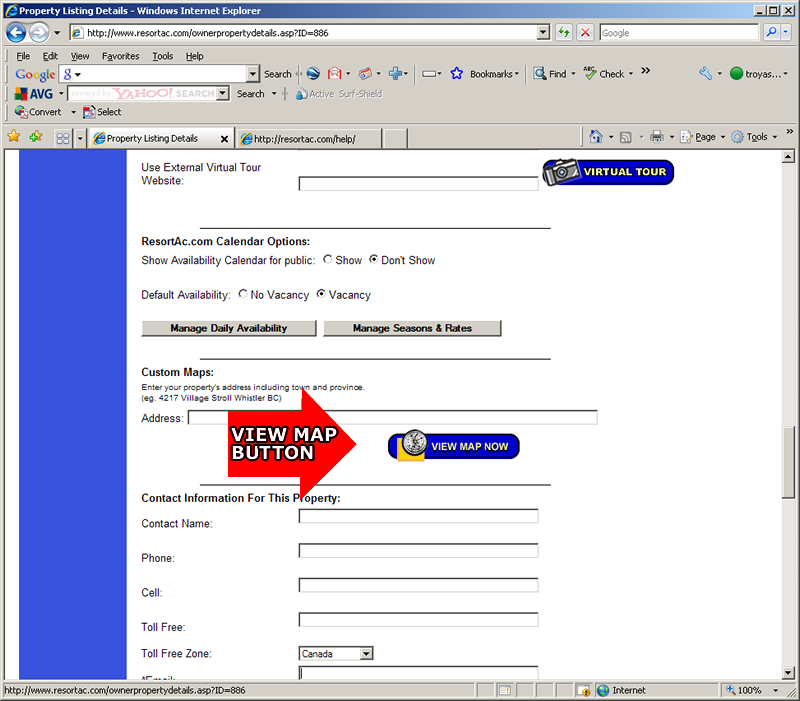
- Click on the property you want to edit and scroll down to the map settings and click the 'View Map Now'
button.
- A new window will open up where you can type in your address,
then save your changes.
- The map with marker will appear. If the marker is in the correct
spot, you are good to go.
- If your marker is in the wrong spot, click on the marker, hold
your mouse button down, drag to where you want the marker, then
release your mouse button.
- Once the marker is in the desired position on the map, save your
changes by clicking the 'Save Marker' button.
Click on the image below to view a screenshot...
|
Change your contact information -
email, phone, name, address:
Note: Your contact info is stored in your profile AND on the bottom of
each listing you have. When updating your contact info, don't forget to
make updates in both places.
| |
- Click on the Owners Logon
link on the left side of page.
- Logon using your Username and Password.
If you have forgotten your password, enter your email address in the
username field, check the email password box, click the submit
button, and your password will be emailed to you instantly.
- Click on Update
Your Profile
- Make your changes
- Click the Submit button at the bottom of the screen to save.
|
Manage your rental requests:
| |
- Click on the Owners Logon
link on the left side of page.
- Logon using your Username and Password.
If you have forgotten your password, enter your email address in the
username field, check the email password box, click the submit
button, and your password will be emailed to you instantly.
- Click on Manage Your Rental
Requests
- Narrow down your list of requests by using the filter options at
the top of the page.
- Sort these requests by clicking the
column headings - click again to reverse order.
- Set the status of each request so it will appear where you want
it when you return to this page. After changing status, be sure to click the Submit button at the bottom of the screen
to save your work.
|
Find your listing on our site:
| |
- Go to our advanced search page at www.ResortAc.com/search.asp.
- Use the dropdown box 1/3 of the way down
the page to select your property ID number.
- Click the grey Get Listing button to view your listing.
OR
- Click on the Owners Logon
link on the left side of page.
- Logon using your Username and Password. If you have forgotten your password, enter your email address in the
username field, check the email password box, click the submit
button, and your password will be emailed to you instantly.
- In the table with your property listing(s) find the column labeled
'Hot Link' and click
beside the your listing.
- A new window will open with your hot link in it.
- Click on this link to view your listing. Note: this
hot link can be copied into email messages
for easy reference. You can also copy this address into other
web pages as a hotlink to your listing.
|
"Private Label" availability calendar and
rental request form:
| |
Availability Calendar: Tired of updating multiple calendars? We
can help!
Our private label option allows you to maintain a single rental
calendar that is used for all of your marketing web sites. Using the
calendar's simple update capabilities your rates and availability will
be synchronized across any web sites that use the calendar link. Add our
private label availability calendar to your own websites using this link
(make sure to replace 463 with your ResortAc.com listing number):
12-Month View:
http://www.resortac.com/syndication/calendar.asp?ID=463 or
1-Month View:
http://www.resortac.com/syndication/propertyavailability2.asp?ID=463
Seasons & Rates:
Add our private label seasons and rates table to your own websites
using this link (make sure to replace 463 with your ResortAc.com listing
number):
http://www.resortac.com/syndication/seasonrates.asp?ID=463
Rental Inquiries: Tired of checking multiple systems for new
rental requests? We can help!
Our private label option allows you to funnel rental inquiries from
multiple websites into your ResortAc.com account. Our system provides a
rental request management area that you can
access from any Internet connection. Add our private label rental
request form to your own websites using this link (make sure to replace
463 with your ResortAc.com listing number):
http://www.resortac.com/syndication/propertyrequest2.asp?ID=463
Please contact Troy if you have
questions or need assistance integrating private label features into
your other web sites. |
AlluraDirect.com Links - availability calendar,
reserve now, and more...
| |
The XXXXXXX should be replaced with the respective owner's private label site
name. Reserve Now button:
http://XXXXXXXXXX.directvacations.com/Property/ReserveNow/
Make a Payment button:
http://XXXXXXXXXX.directvacations.com/Property/MakeAPayment/
Availability
Calendar:
http://XXXXXXXXXX.directvacations.com/search/AvailabilityWin.cfm
Rates Table:
http://XXXXXXXXXX.directvacations.com/search/RatesWin.cfm |
If you have any questions or would like assistance please email,
call toll-free (North America) 1-888-205-0649 or directly at 250-503-3863.

Please visit the new ResortAc.com Support Community & Helpdesk... click
here now.
|